
Yes, Citra runs on Windows. You download the build, unzip it, add your own games, and play 3DS titles on your PC. The final Citra build still works on modern Windows. For ongoing updates, the maintained version, Azahar, is the better pick. This guide covers download, setup, menus, controls and the best settings.
Does Citra work on Windows?
Yes. Citra runs well on Windows and plays 3DS games at full speed on most PCs. It comes as a small folder you unzip and run. There is no long install and no account.
The final Citra build still works on current Windows. For fixes and new features, Azahar continues the same code. Both are on our download page.
Which Windows build should you use?
You will see two Windows versions of Citra. Here is the simple guide:
- MSVC build. The standard choice for most PCs. Pick this if you are unsure.
- MSYS2 build. An alternative for specific setups. Most people do not need it.
If you want ongoing updates instead of the frozen build, choose Azahar. We explain the trade-off on our Citra vs Azahar page.
How to download and install Citra on Windows
Citra is portable, so there is no installer. Follow these steps:
- Download the Windows build from our download page.
- Right-click the file and choose Extract All to unzip the folder.
- Open the folder and run
citra-qt.exe. - The emulator opens and is ready to use.
Keep the folder somewhere easy to find, like your Documents. You can make a desktop shortcut to citra-qt.exe for quick access.
What you need to run Citra on Windows
The bar is not high:
- A 64-bit version of Windows 10 or 11.
- A graphics card from the last several years that supports modern OpenGL or Vulkan.
- Your own 3DS games, saved as
.3dsor.ciafiles. - A little free storage for your games.
We do not host game files. Our guide shows how to get games the legal way, from a console you own.
How to add your games
When Citra opens, the game list is empty at first.
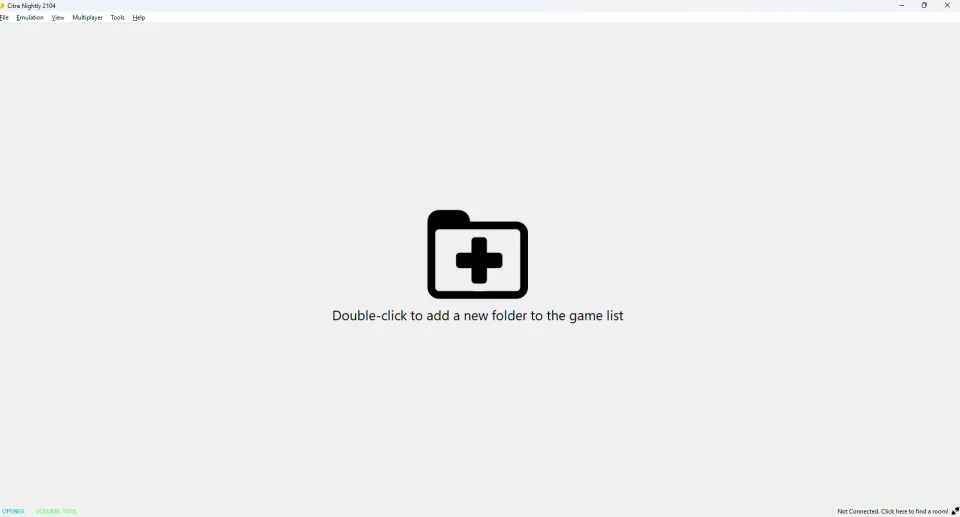
Double-click the empty list, or open the File menu, to point Citra at your games folder. Pick the folder that holds your .3ds or .cia files. Your games then appear in the list. Double-click a game to start playing.
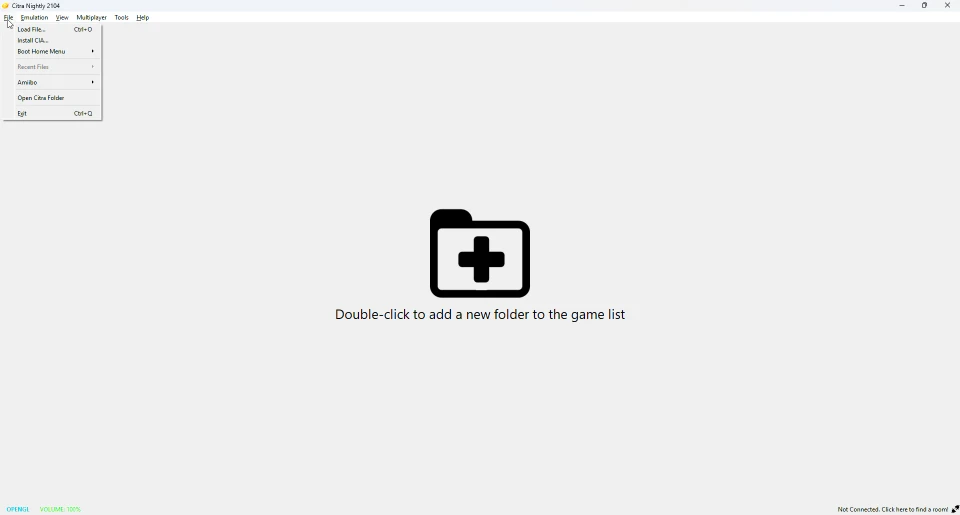
You can also use Load File to open one game directly, or Install CIA to install a title into Citra.
The Citra menus you will use
Most of your time sits in two menus. The File menu loads games and opens the Citra folder. The Emulation menu holds Configure, plus save states.
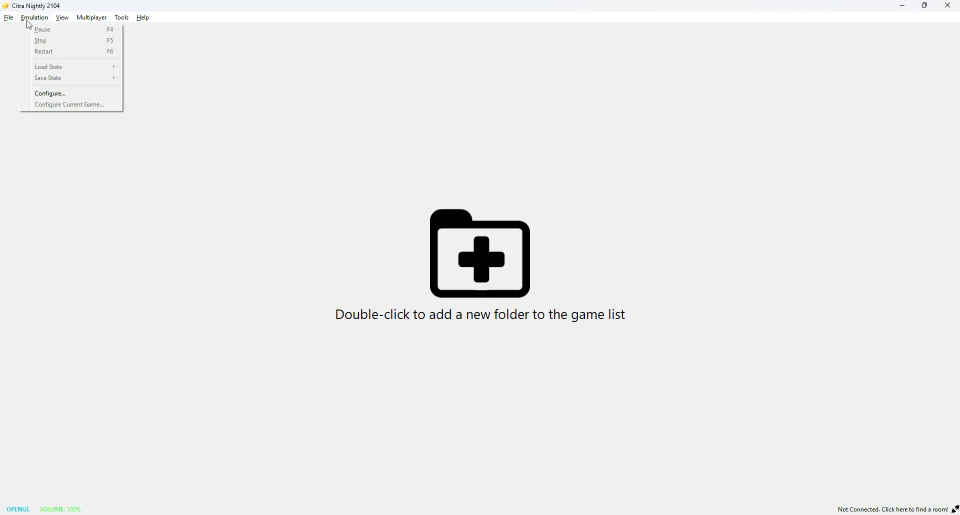
Save states let you save at any moment and jump back later. To change buttons, open Emulation, then Configure, then Controls. Our controls guide lists the full default layout.
Best settings for Windows
Good settings make games look sharper and run smoother. Open Emulation, then Configure, then Graphics.
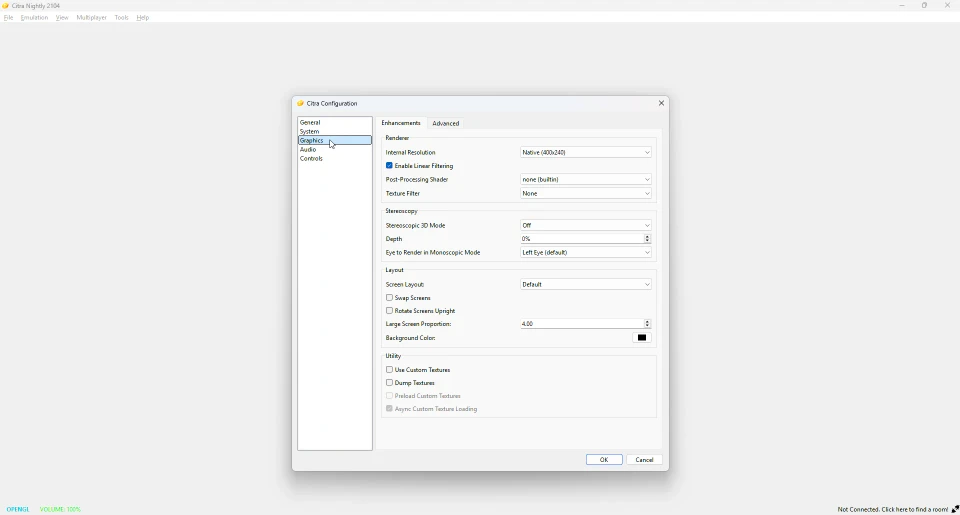
Raise the internal resolution for a cleaner image. Drop it back down if your PC struggles. Leave the hardware graphics options on, since they help speed. For a full, tested setup, follow our best settings guide.
Common Windows problems and fixes
Most issues clear up fast:
- A missing
.dllerror on launch usually means you need the Microsoft Visual C++ Redistributable. Install the latest x64 version from Microsoft’s official page and try again. - A black screen often means the game file is incomplete or unsupported.
- Low speed usually means the resolution is set too high for your PC.
For more fixes, see our troubleshooting guide.
Is the Citra download safe?
The real Citra is safe on Windows. The risk is fake copies. The official site is gone, so many reupload pages host tampered files, and some hide unwanted software. Only download from a source you trust. Check the SHA-256 value where it is offered. We host a verified build so you can confirm the file is clean.
Frequently asked questions
Does Citra need to be installed on Windows?
No. Citra is portable. You unzip the folder and run citra-qt.exe. There is no setup wizard.
Is Citra safe for PC?
Yes, the real build is safe. Only fake reuploads are a risk, so verify your download.
Is Citra free for Windows?
Yes. Citra is free and open-source. Any site charging for it is not honest.
Can Citra run on Windows 11?
Yes. The final build runs on current Windows, including Windows 11.
How do I update Citra on Windows?
You cannot. The build is frozen. If you want updates, use Azahar instead.
Why is Citra slow on my PC?
Usually the internal resolution is too high. Lower it, and make sure your graphics driver is up to date.