
Using Citra is simple once you know the steps. You download it, add your own games, set your controls, and load a game. This guide walks you through the whole process from scratch, in plain steps. By the end, you will be playing 3DS games on your device.
What you need before you start
Three things:
- Citra itself, which you can get from our download page.
- Your own 3DS games, saved as
.3dsor.ciafiles. - A PC or phone to run it on.
You dump your own games from a console you own. Our how to get games guide shows the legal way. We do not host game files.
Step 1: Download and open Citra
First, get Citra for your device. On a PC, unzip the folder and run citra-qt.exe. On a phone, install the app file. Each platform has a full guide. See our Windows walkthrough, or the Android one if you are on a phone. If you want ongoing updates, pick Azahar instead, which works the same way.
Step 2: Add your games
When Citra opens, the game list is empty at first.
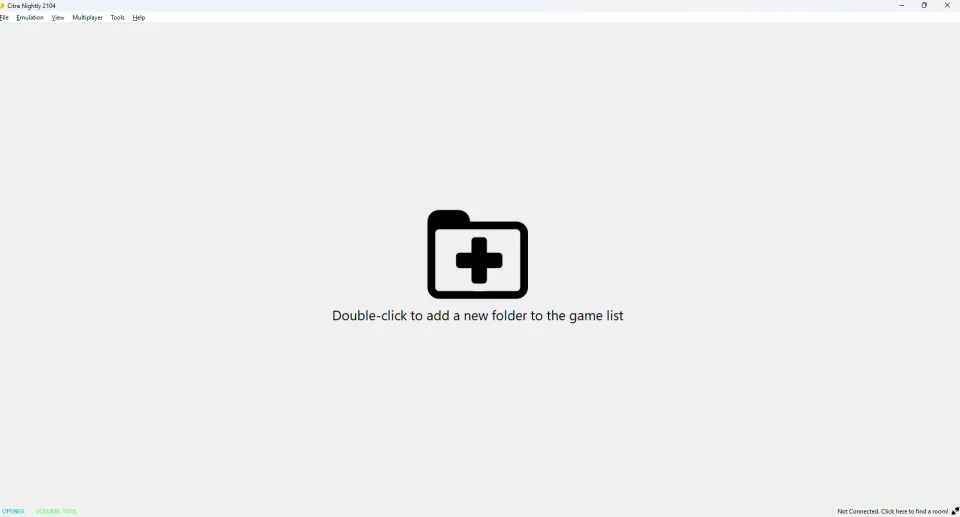
Double-click the empty list, or open the File menu, to point Citra at your games folder. Choose the folder that holds your .3ds or .cia files.
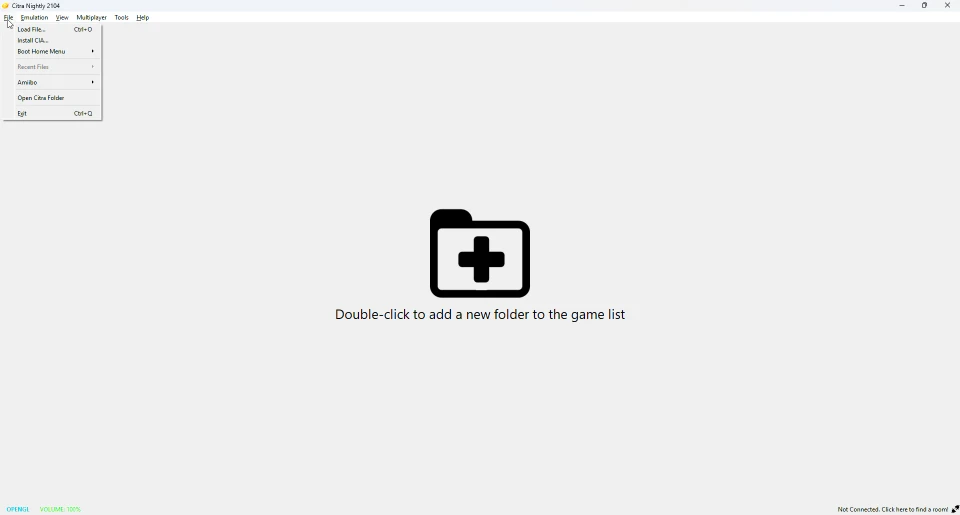
Your games now appear in the list. You can also use Load File to open one game directly.
Step 3: Set up your controls
Citra uses your keyboard by default, so you can start playing right away with those keys. To change them, or to use a controller, open Emulation, then Configure, then Controls. Our controls guide lists every default key and shows how to set up a controller.
Step 4: Load and play a game
This part is easy. Double-click a game in the list to start it. The game boots just like on a real 3DS, with the top and bottom screens shown together. Use your keyboard or controller to play. To use the touch screen, click the bottom screen with your mouse.
Step 5: Save your progress
You have two ways to save. Games save on their own, the same as on a 3DS. Citra also adds save states, which store your exact moment.
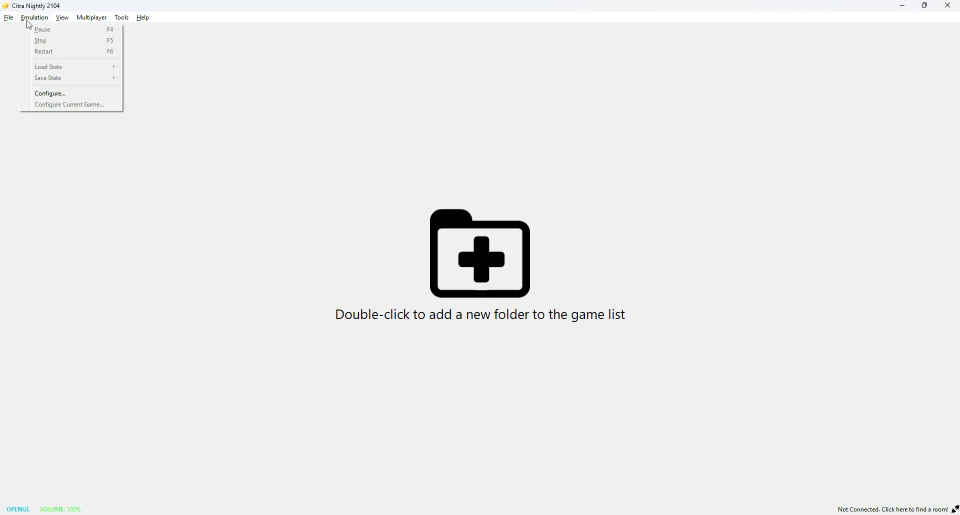
Open the Emulation menu to find Save State and Load State. A save state lets you jump back to any point, which is great for hard sections.
How to make games look and run better
Once you are playing, you can improve things. Raise the resolution for sharper graphics, and turn on the speed options for smoother play. Our best settings guide walks through each one in order.
Common beginner mistakes
A few things trip people up:
- Using encrypted game files. Dump your games correctly so Citra can read them.
- Pointing Citra at the wrong folder. The games must sit inside the folder you added.
- Setting the resolution too high for a weak device, which causes lag.
If something goes wrong, our troubleshooting guide has the fixes.
Should beginners use Citra or Azahar?
Azahar is the easier long-term choice, and the steps are identical. It is the maintained version of Citra, so it gets fixes and runs the same games. Complete beginners lose nothing by starting with it. See our Citra vs Azahar page to decide.
Frequently asked questions
Is Citra hard to use?
No. You add your games, pick one, and play. The steps above take only a few minutes.
Do I need my own games to use Citra?
Yes. Citra does not come with games. You supply your own .3ds or .cia files, dumped from a console you own.
How do I load a game in Citra?
Add your games folder, then double-click a game in the list. You can also use Load File.
How do I save in Citra?
Games save on their own, and you can also use save states in the Emulation menu.
Is Citra free to use?
Yes. Citra is free and open-source. You never need to pay for it.