
Mods let you change how a 3DS game plays, not just how it looks. In Citra, you place mod files in the right folder, and the game loads them on top of itself. This guide shows how to install RomFS and ExeFS mods, apply code patches, use 3GX plugins, and where every file goes.
What are mods in Citra?
Mods are files that change a 3DS game’s content. They can swap textures, edit levels, change text, tweak difficulty, or patch the game’s code. Unlike a texture pack alone, a mod can affect how the game actually plays. Citra loads mods on top of the original game, so your base game file stays untouched.
How Citra loads mods
Citra uses a system called LayeredFS. LayeredFS means Citra layers your mod files over the game’s own files while it runs. The game reads your version instead of the original, but nothing on the real file is changed. This is the same idea used on a modded 3DS, so many existing 3DS mods work in Citra too.
Where do mod files go?
Mods live in Citra’s own folders. Open the File menu and click Open Citra Folder. Mods go here:
load/mods/
Each game has its own subfolder, named after its title ID. Inside that, mods use folders like romfs for game assets and exefs for code. Our user directory guide explains the full layout.
How to install a mod
Follow these steps:
- Download a mod for your game from a trusted source.
- Extract it if it is zipped.
- Place it in
load/mods/, inside that game’s title ID folder. - Keep the mod’s folder structure, such as its
romfsfolder. - Launch the game. The mod loads on its own.
If the game has no folder yet, create one named after its title ID.
Types of Citra mods
Mods come in a few forms:
- RomFS mods, which replace game assets like models, text and levels.
- ExeFS and code patches, which change how the game runs. These often use a
code.ipsfile. - Texture packs, which upgrade the visuals. We cover these in our custom textures guide.
- 3GX plugins, which add extra features, covered next.
How to use 3GX plugins
Some mods come as 3GX plugins, the same kind used on a real modded 3DS. To use them, turn on the plugin loader. Open Emulation, then Configure, then the System tab, and tick Enable 3GX plugin loader.
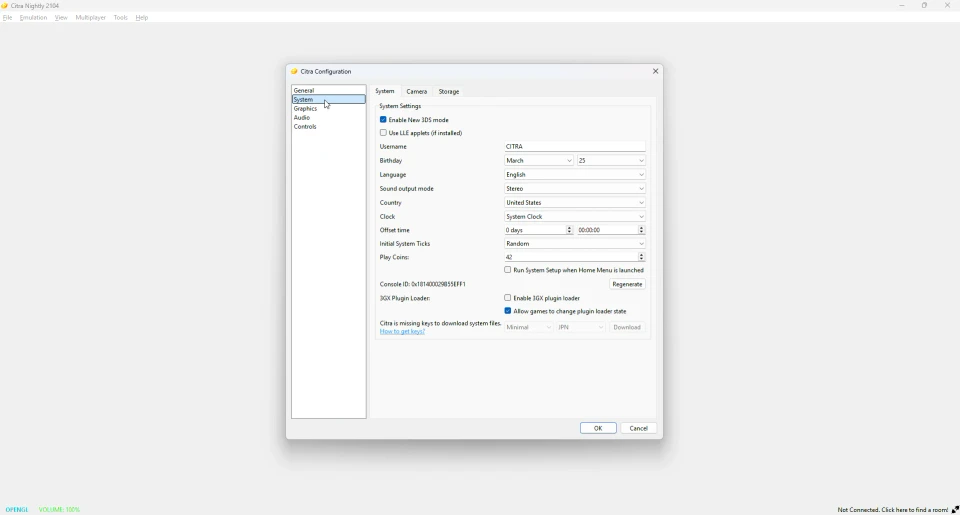
Then place the plugin file in the plugin folder for that game. The plugin runs when you launch the game.
Mods vs custom textures
The two overlap but are not the same. Custom textures only change how a game looks. Mods can change the actual content and behavior. If you only want sharper visuals, a texture pack is enough. For new content or gameplay changes, you want mods. Many players use both at once, and our custom textures guide pairs well with this one.
Are Citra mods safe and legal?
The mods themselves are made by players, and using them with your own game is fine. As always, the game must be your own dumped copy. The main risk is where you download a mod, so use trusted community sources. A mod file is just data the game reads, so a clean one will not harm your device.
Do mods work in Azahar?
Yes. Azahar uses the same LayeredFS layout, so your mods work there without changes. Place them in the matching folder and launch the game. See our Citra vs Azahar page for the full comparison.
Frequently asked questions
How do I install mods in Citra?
Place the mod in the load/mods/ folder, inside your game’s title ID folder, then launch the game.
Where do Citra mods go?
In the load/mods/ folder in the Citra user directory, in a subfolder named after the game’s title ID.
What is LayeredFS?
It is the system Citra uses to layer mod files over a game without changing the original file.
Can I use 3DS mods in Citra?
Often yes. Many mods made for a modded 3DS, including RomFS mods and 3GX plugins, work in Citra.
Are Citra mods safe?
The files are just game data. Download from trusted sources and use your own game, and you are fine.