
Custom textures let you replace a game’s art with sharper, higher-quality versions. In Citra, you turn on custom textures, drop a texture pack into the right folder, and the game looks far better. This guide shows how to enable them, install a pack, and even dump your own to build one.
What are custom textures in Citra?
Custom textures are replacement art files for a game. They swap the original, low-resolution textures for sharper, higher-quality ones. A good pack can make an old 3DS game look close to an HD remaster. Citra loads these files on top of the game, so the game itself is never changed.
How to enable custom textures
First, turn the feature on. Open Emulation, then Configure, then Graphics, and go to the Enhancements tab. In the Utility section, tick Use Custom Textures.
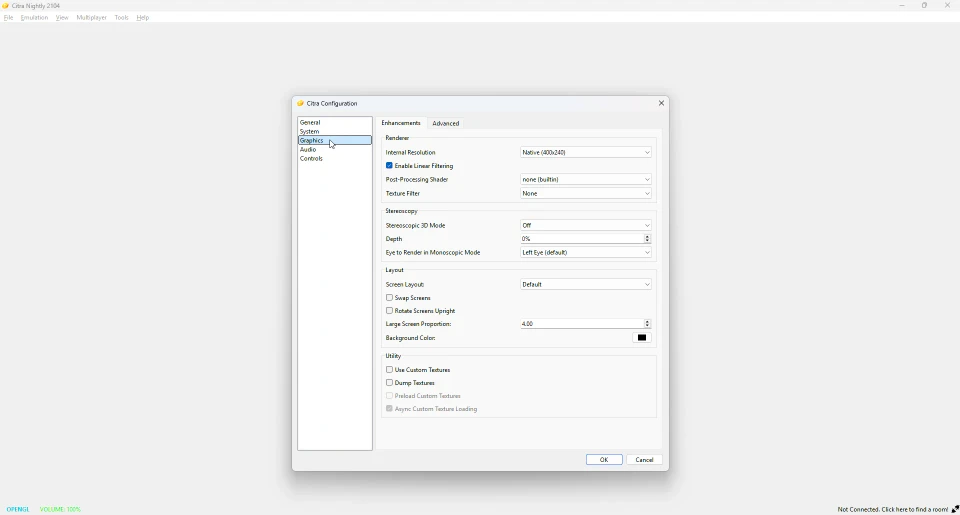
That switch tells Citra to load any texture packs you have added. Now you just need to place a pack in the right folder.
Where do custom texture packs go?
Texture packs live in Citra’s own folders. Open the File menu and click Open Citra Folder to find them. Inside, packs go here:
load/textures/
Each game has its own subfolder, named after the game’s title ID. The title ID is a unique code that identifies a game. Our user directory guide explains this folder layout in full.
How to install a texture pack
Follow these steps:
- Download a texture pack for your game from a trusted source.
- Extract it if it is zipped.
- Place it in the
load/textures/folder, inside that game’s title ID folder. - Make sure Use Custom Textures is on.
- Launch the game. The new textures load on their own.
If the game does not have a folder yet, create one named after its title ID.
How to dump your own textures
Want to build a pack yourself? Citra can export a game’s textures for you to edit. In the same Utility section, tick Dump Textures. Then play the game. Citra saves each texture it shows into a dump/textures/ folder. You edit those files, then move them into the load/textures/ folder to use them.
Custom textures vs mods
These two are different. Custom textures only change how a game looks. Mods can change much more, like levels, characters or rules. If you want to change gameplay, not just visuals, see our mods guide. Many players use both together.
Do custom textures slow Citra down?
They can, since larger packs use more memory. Two options help. Preload Custom Textures loads them at launch for smoother play, though it uses more memory upfront. Async Custom Texture Loading loads them in the background to cut stutter. If a pack causes lag, try a smaller one, or tune your setup with our best settings guide.
Do custom textures work in Azahar?
Yes. Azahar keeps the same folder layout, so your texture packs work there without changes. Just place them in the matching folder and turn the feature on. See our Citra vs Azahar page for the wider comparison.
Frequently asked questions
How do I add HD textures to Citra?
Turn on Use Custom Textures in the graphics settings, then place a texture pack in the load/textures/ folder for your game.
Where do custom textures go in Citra?
In the load/textures/ folder inside the Citra user directory, in a subfolder named after the game’s title ID.
Why are my custom textures not loading?
Check that Use Custom Textures is on, and that the pack sits in the correct title ID folder.
Can I make my own texture pack?
Yes. Turn on Dump Textures, play the game, edit the dumped files, then load them from the textures folder.
Do custom textures hurt performance?
Large packs can. Use the preload or async options, or pick a smaller pack, to keep things smooth.