
The Citra user directory is the folder where Citra keeps everything, your saves, mods, settings, system files and more. Knowing where it is helps you back up saves, add mods, and fix problems. This guide shows how to open it, where it lives on each system, and what each folder inside is for.
What is the Citra user directory?
It is Citra’s home folder on your device. Everything Citra creates or needs sits here. That includes your game saves, save states, mods, custom textures, system files, keys and settings. If you ever back up Citra, move it, or add files, this is the folder you work with.
How to open the Citra user directory
The fastest way is from inside Citra. Open the File menu and click Open Citra Folder. Your file manager opens straight to the user directory. From there you can reach every folder below.
Where is the Citra folder on each system?
The location depends on your device:
- On Windows, it is in
AppData\Roaming\Citra. - On macOS, it is in
Library/Application Support/Citra. - On Linux, it is in
.local/share/citra-emu. - On Android, it sits in the app’s own storage.
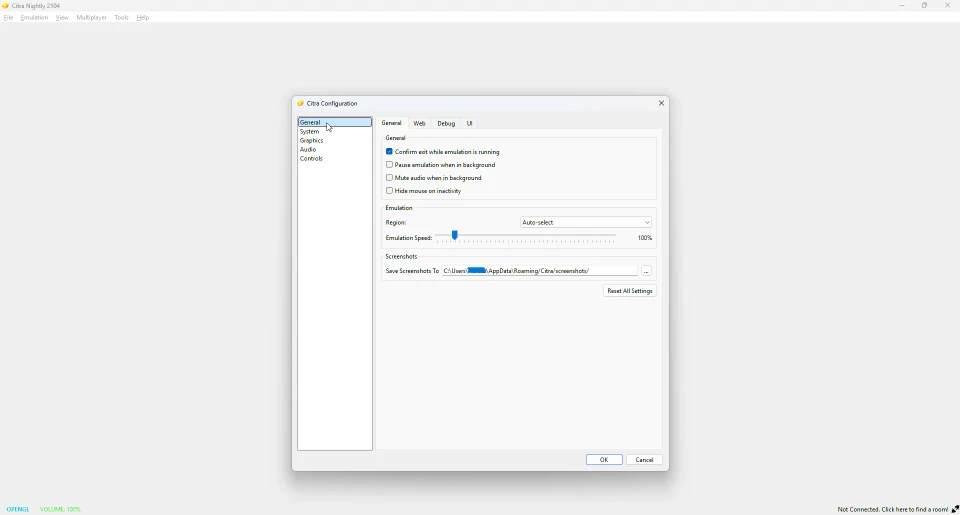
Some builds also support a portable user folder placed next to the program. If that folder exists, Citra uses it instead.
The main folders inside
Inside the user directory, each folder has a job:
sdmcholds your game saves, like a virtual SD card.nandholds system titles and data.sysdataholds your keys, shared fonts and system config.configholds Citra’s settings.loadholds your mods and custom textures.dumpholds textures you export.statesholds your save states.shadersholds the shader cache that speeds up games.cheatsholds cheat files.logholds log files for troubleshooting.
Where are your saves stored?
Two folders matter for saving. In-game saves live in the sdmc folder, the same way a real 3DS uses its SD card. Save states, the ones you make with a hotkey, live in the states folder. To keep your progress safe, back up both.
Where do mods and textures go?
Mods and texture packs go in the load folder. Mods use load/mods, and texture packs use load/textures, each in a subfolder for the game. Our mods guide explains this in detail. The same goes for our custom textures guide.
Where do system files and keys go?
Your AES keys, shared fonts and system config go in the sysdata folder. Placing them here lets Citra find them at launch. Our system files guide covers each one and how to get it.
How to back up your Citra data
Backing up is easy and smart. Close Citra, then copy the whole user directory to a safe place. That single copy holds your saves, settings and everything else. Do this before a big change, like switching versions or moving to a new PC.
Do these folders match Azahar?
Yes. Azahar uses the same folder layout. Your saves, mods and system files sit in the same places, so they carry over when you switch. This is why moving from Citra to Azahar is smooth. See our Citra vs Azahar page.
Frequently asked questions
Where are Citra save files stored?
In-game saves are in the sdmc folder, and save states are in the states folder, inside the user directory.
How do I open the Citra folder?
Open the File menu in Citra and click Open Citra Folder.
Where do mods go in Citra?
In the load folder, under load/mods for mods and load/textures for texture packs.
Where are AES keys stored in Citra?
In the sysdata folder inside the user directory.
How do I back up Citra?
Close Citra, then copy the whole user directory to a safe location.