
Citra maps the 3DS buttons to your keyboard by default, and you can change any of them. You can also plug in a controller and set it up in a minute. This guide lists the default keyboard layout, shows how to remap buttons, set up a controller, and change hotkeys.
What are Citra’s default controls?
By default, Citra uses your keyboard. Here is the standard layout for the main 3DS buttons:
| 3DS button | Default keyboard key |
|---|---|
| A | A |
| B | S |
| X | Z |
| Y | X |
| D-Pad (up, down, left, right) | T G F H |
| Circle Pad | Arrow keys |
| C-Stick (up, down, left, right) | I K J L |
| L and R | Q and W |
| Start and Select | M and N |
| Home | B |
The Circle Pad is the 3DS analog stick. The C-Stick is the small second stick on New 3DS models. You can change any of these keys, as shown below.
How to change the controls
You can remap any button in a few clicks. Open the Emulation menu, then Configure, then Controls, and stay on the Input tab.
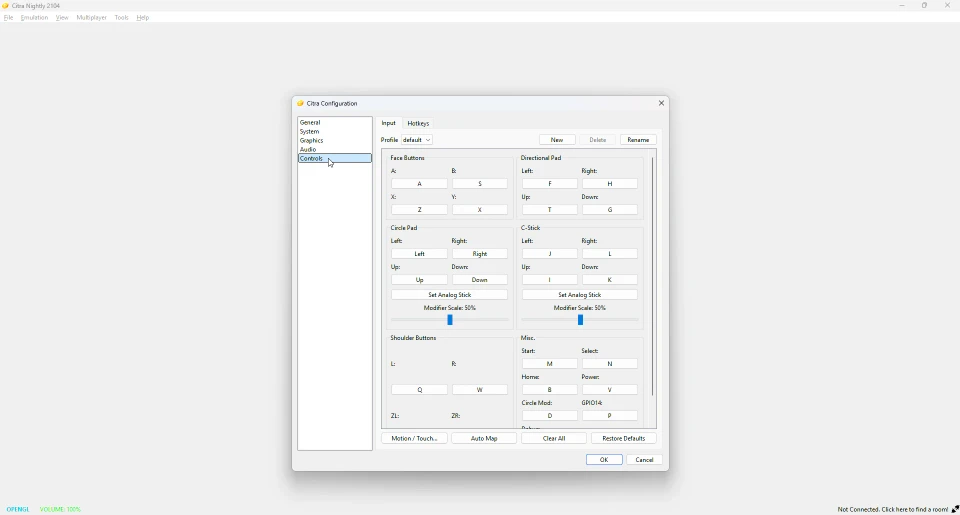
Click the box next to the button you want to change, then press the new key. The box updates right away. Repeat for any button. When you are done, click OK to save. If you make a mess, use Restore Defaults to start over.
How to set up a controller
A controller is easy to add. Connect it to your device first, then open Emulation, then Configure, then Controls. Click Auto Map to fill in the buttons automatically. You can also click each box and press the matching button on your controller to set it by hand. Most standard controllers work without extra software.
Useful Citra hotkeys
Hotkeys are quick keyboard shortcuts for common actions. These are the ones you will use most:
| Action | Hotkey |
|---|---|
| Fullscreen | F11 |
| Pause or continue | F4 |
| Stop the game | F5 |
| Restart the game | F6 |
| Take a screenshot | Ctrl+P |
| Swap top and bottom screens | F9 |
| Rotate the screens | F8 |
| Load a game file | Ctrl+O |
| Exit Citra | Ctrl+Q |
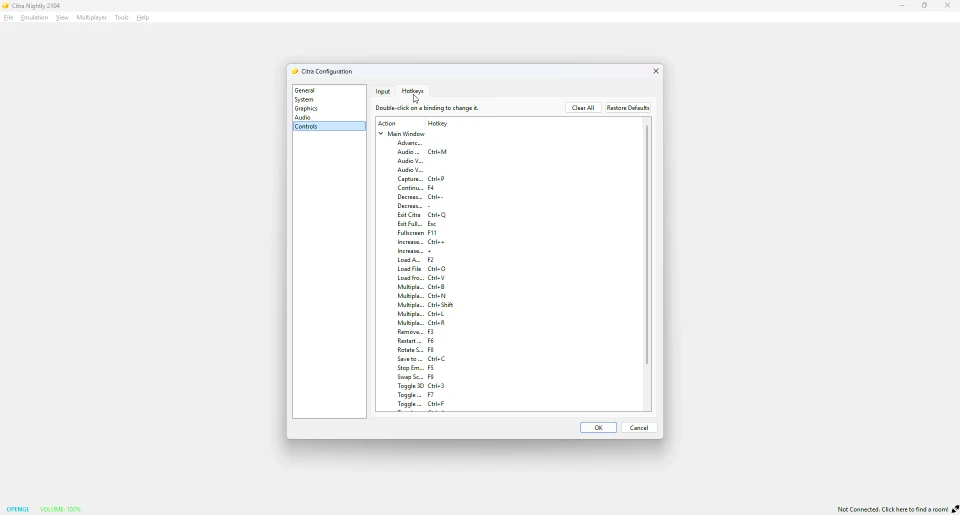
To change any hotkey, open Configure, then Controls, then the Hotkeys tab. Double-click a shortcut and press the new keys.
How to use the touch screen
The 3DS has a touch screen on the bottom, and Citra handles it simply. On a PC, click the bottom screen with your mouse to tap it. On a phone, just tap the bottom screen with your finger. Many games use this for menus, maps and drawing.
Controls not working?
If a button does nothing, open the Controls settings and check the mapping. If a controller is not detected, reconnect it before you open Citra, then use Auto Map again. Our troubleshooting guide covers more input problems.
Do these controls work in Azahar?
Yes. Azahar uses the same controls layout as Citra, so everything here applies there too. Your button setup even carries over. See our Citra vs Azahar page for the full picture.
Frequently asked questions
What are the default Citra controls?
The face buttons map to A, S, Z and X, the Circle Pad uses the arrow keys, and the shoulder buttons use Q and W. The full list is in the table above.
How do I use a controller with Citra?
Connect it, open Configure, then Controls, and click Auto Map. Citra fills in the buttons for you.
How do I change buttons in Citra?
Open Configure, then Controls, click a button box, and press the new key. Click OK to save.
How do I tap the 3DS touch screen?
Click the bottom screen with your mouse on PC, or tap it with your finger on a phone.
Do my controls transfer to Azahar?
Yes. Azahar shares Citra’s layout, so your control setup carries over.