
Here are the best Citra settings for smooth speed and sharp graphics. The right setup fixes lag, boosts FPS, and makes 3DS games look far better than the real console. This guide walks through each key setting, what it does, and when to change it. Almost all of it lives in one place, the configuration window.
Where do you change Citra’s settings?
All the important settings sit in one window. Open the Emulation menu, then click Configure. The Graphics section holds most of the speed and quality options. You will also touch Audio and the Debug area for a few extra tweaks.
Change one thing at a time, then test a game. That way you know what actually helped. For a full tour of every option, see our configuration guide. To remap buttons, see our controls guide.
Best graphics settings in Citra
Open Emulation, then Configure, then Graphics, and start on the Enhancements tab.
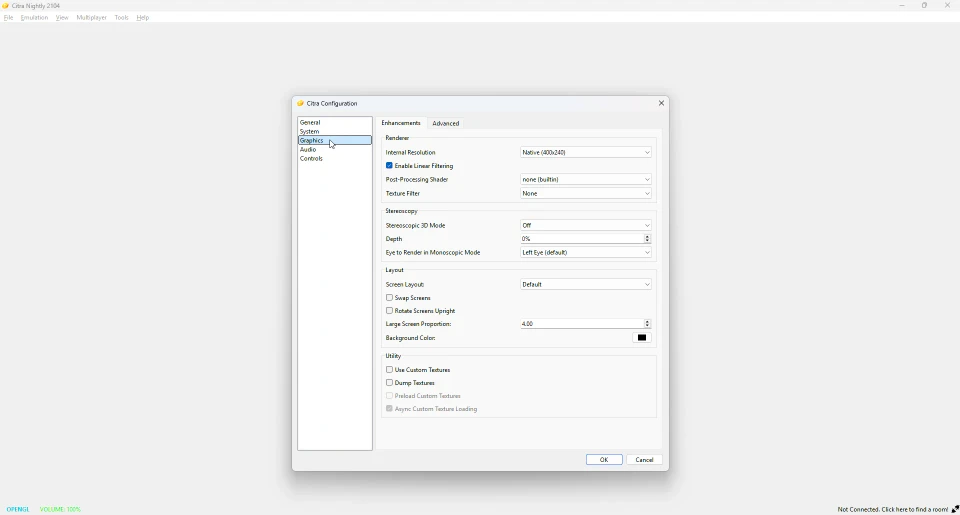
Here is what matters:
- Internal Resolution. This controls how sharp games look. Native is the default and the lightest. Raise it a step or two for a crisp, HD image. Drop it back if the frame rate falls.
- Enable Linear Filtering. Smooths rough edges. Leave it on for a cleaner look.
- Texture Filter. Can sharpen or smooth textures. Try it for a different style, but it adds load.
- Post-Processing Shader. Optional screen effects. Most people leave this off.
For texture packs, see our custom textures guide.
Best advanced graphics settings
Still in Graphics, open the Advanced tab.
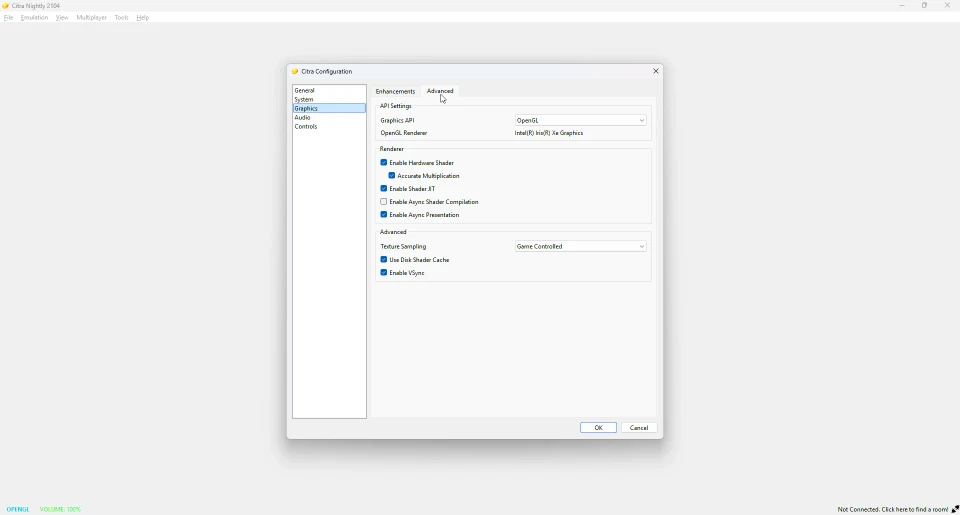
These affect speed the most:
- Enable Hardware Shader. Turn this on. It is the single biggest speed boost.
- Enable Shader JIT. Leave it on for faster performance.
- Use Disk Shader Cache. Turn it on. It cuts stutter after the first time you play a game.
- Enable Async Shader Compilation. Reduces first-time stutter. It can cause brief visual glitches, so turn it off if you notice any.
- Enable Async Presentation. Leave it on for smoother output.
- Enable VSync. Stops screen tearing. Leave it on unless it adds input delay for you.
Should you use OpenGL or Vulkan?
This is the Graphics API setting at the top of the Advanced tab. OpenGL is the safe default and works everywhere. Vulkan can be faster on newer graphics cards. There is no single winner. Try both, play the same scene, and keep the one that runs smoother on your device.
How to boost FPS in Citra
Speed comes from a few key choices:
- Turn on Enable Hardware Shader.
- Turn on Enable Shader JIT and Use Disk Shader Cache.
- Keep Internal Resolution at Native if your device is weak.
- Close other apps before you play.
Make these changes first. They fix most slow games. If a game still lags, keep reading.
How to fix lag and stuttering
Lag and stutter usually have simple causes:
- Stutter the first time you enter an area is normal while shaders build. Use Disk Shader Cache makes it fade after that.
- For less first-time stutter, turn on Enable Async Shader Compilation.
- If the whole game is slow, lower the Internal Resolution by a step.
- Old graphics drivers cause many problems, so update them.
Our troubleshooting guide covers black screens and crashes in more depth.
CPU settings for tricky games
A few games need a CPU tweak. Open Emulation, then Configure, then the Debug tab.
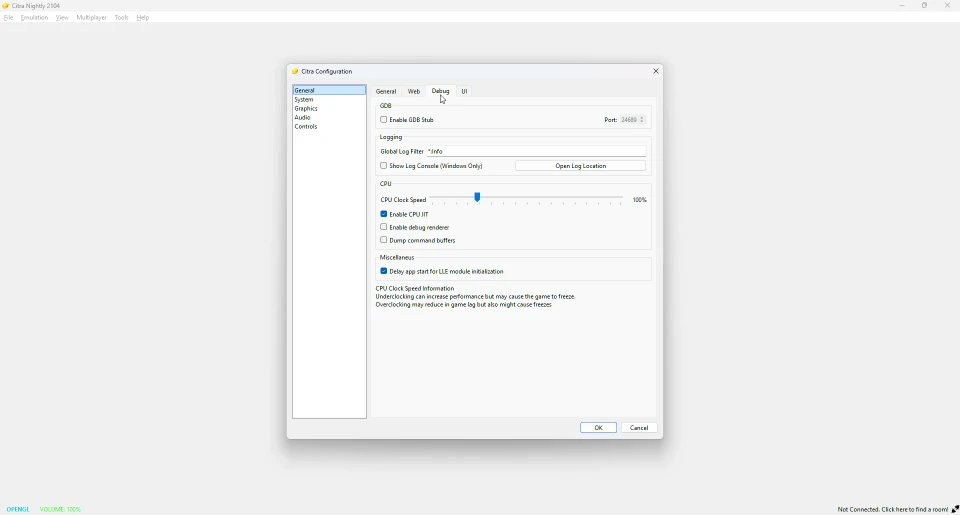
- Enable CPU JIT. Leave this on. It keeps games running fast.
- CPU Clock Speed. Leave it at the default for most games. Lowering it can help a few titles run steadily. Raising it can cut lag in others, but both can cause freezes. Change it only for one game at a time, and test with care.
Best settings for a low-end PC or phone
Keep it light. Use Native internal resolution. Turn on Enable Hardware Shader, Enable Shader JIT and Use Disk Shader Cache. Leave texture filters off. Close background apps. This gives the steadiest frame rate on weak hardware. For phones, see our Android guide.
Best settings for a high-end PC
Push the quality. Raise the Internal Resolution for a sharp, HD image. Turn on Enable Linear Filtering. Try a Texture Filter for even cleaner visuals, and add texture packs for a full remaster feel. A strong PC handles all of this while staying smooth. Windows users can start from our Windows guide.
Audio settings
Audio needs little work. In Configure, open Audio.
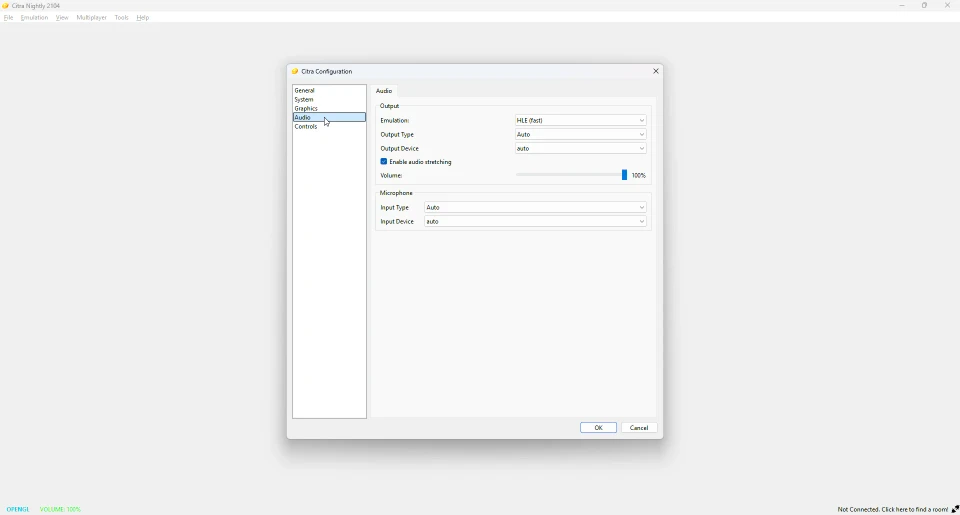
Leave the output on the default mode. Turn on Enable audio stretching to avoid crackles when the frame rate dips. Set the volume to taste. That is all most people ever need here.
Frequently asked questions
How do I get 60 FPS in Citra?
Most 3DS games are built for 30 FPS, so there is no single 60 FPS switch. True 60 FPS needs a per-game cheat or mod, and not every game has one.
Why is Citra so laggy?
Usually the resolution is too high, or hardware shader is off. Lower the resolution and turn on the speed options above.
What is the best resolution for Citra?
Native for weak devices, higher for strong ones. Raise it until a game stops running smoothly, then step back once.
Does Citra support Vulkan?
Yes. You can switch between OpenGL and Vulkan in the Graphics settings. Vulkan is faster on some cards.
Do these settings work in Azahar too?
Yes. Azahar uses the same settings layout, so this guide applies there as well. See our Citra vs Azahar page.