Windows
Here, we will guide you through the simple steps to install Citra Emulator on your Windows PC. You can install it in two ways:
- Using the pre-compiled Citra release (Recommended for Beginners)
- Building Citra from source (For Advanced Users)
Download Latest Version of Citra for Windows
Name | Citra Windows MSVC |
Size | 29 MB |
Version | r608383e |
Developer | PabloMK7 |
Release Date | 29 September 2024 |
Download |
Download Old Version of Citra for Windows
Name | Citra Windows MSVC |
Size | 31 MB |
Version | 2104 Nightly |
Developer | Citra Team |
Release Date | 4 March 2024 |
Download |
Installing Citra on Windows
1. Extract the Downloaded File
Once you download Citra, extract the ZIP/7z file using:
- 7-Zip, or
- Windows’ built-in extractor
- Right-click → Extract All…
For best results, extract the folder to a location with full read/write access, such as: Desktop, Documents, or Downloads folder. This helps avoid permission issues.
2. Launch Citra
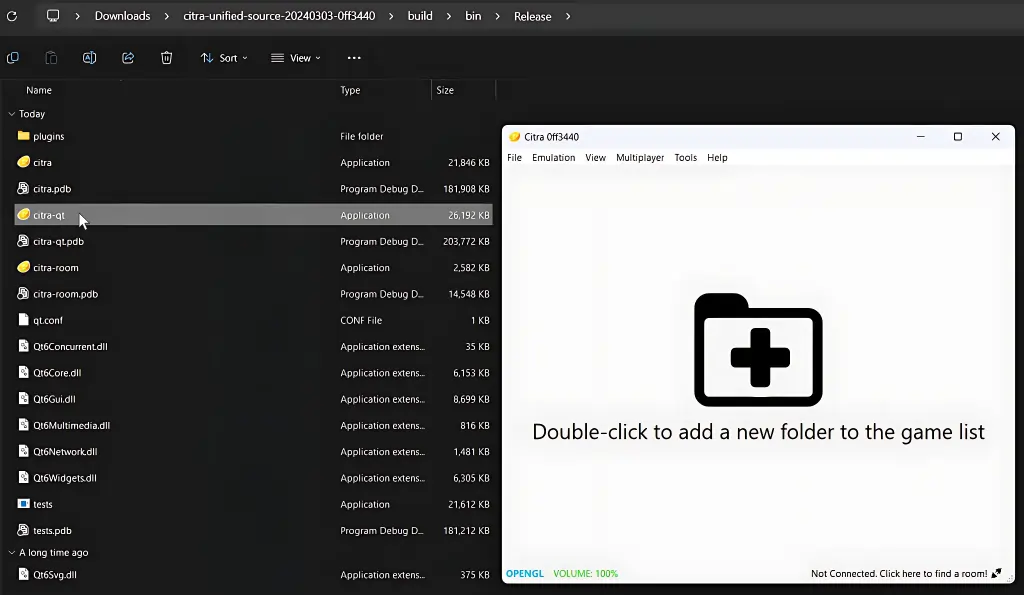
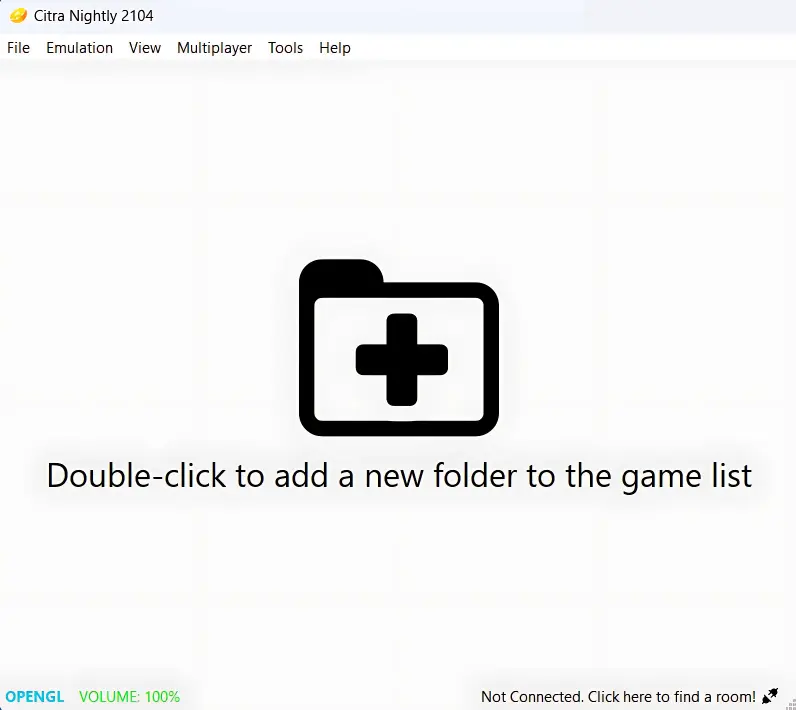
Open the extracted folder and double-click the “citra-qt.exe”. This will start the main Citra application.
Make sure to run the citra-qt.exe
Understanding Citra Executables
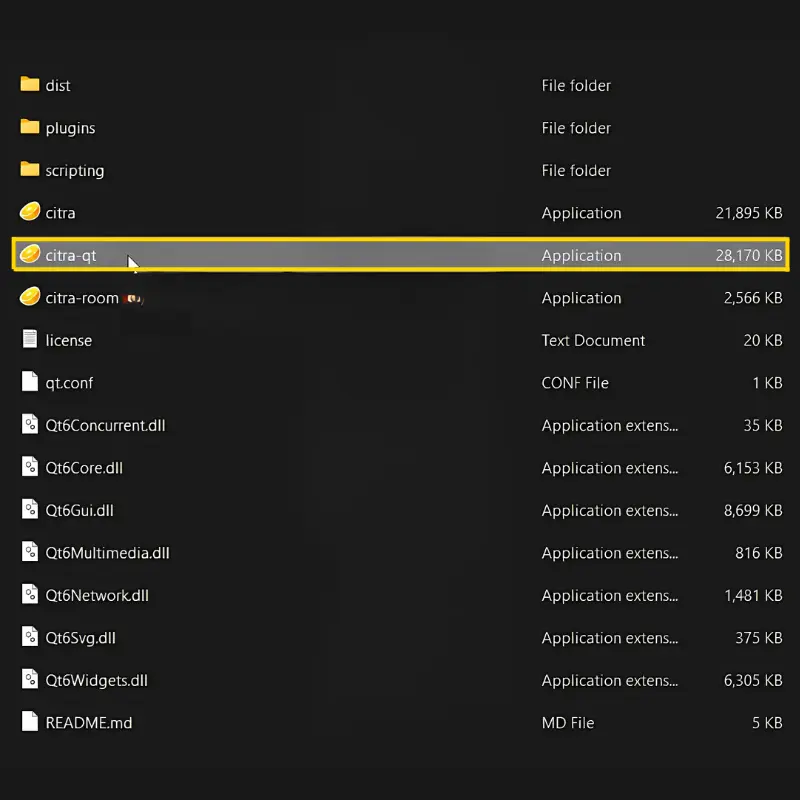
Here are the different files you’ll see inside the folder:
- citra-qt.exe: The main version of Citra with a Graphical User Interface (GUI). This is what most users should run.
- citra-room.exe: Used for creating or hosting local wireless multiplayer rooms.
- citra.exe: A command-line version of Citra (no GUI).Only recommended for advanced users.
Building Citra From Source (Advanced Users)
If you want to compile Citra yourself, follow the steps below.
Requirements
Install the following tools:
- Visual Studio 2022: Make sure to enable C++ Desktop Development during installation.
- CMake: This generates the Visual Studio project files.
- Citra Source Code: Download either the old version or the new version source code.
Step-by-Step Source Build Process
Step 1: Open CMake
Extract the source code, open CMake, then click: Browse Source → Select the folder containing the extracted Citra source.
Step 2: Create a Build Folder
Choose a location for your build folder, or CMake will create one if it doesn’t exist.

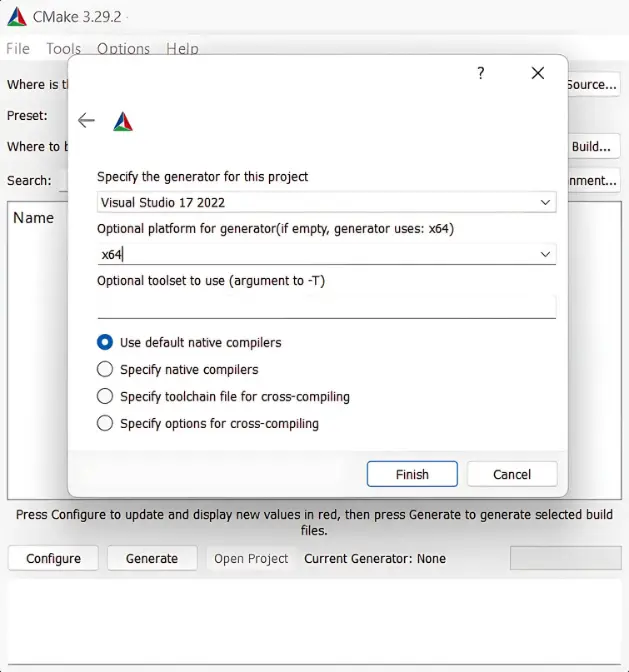
Step 3: Configure the Project
Click Configure and select:
- Visual Studio 17 2022
- x64 under “Optional platform”
Click Finish to begin configuration.
Step 4: Generate Project Files
Once the configuration is complete, click “Generate”. CMake will now create the Visual Studio solution.
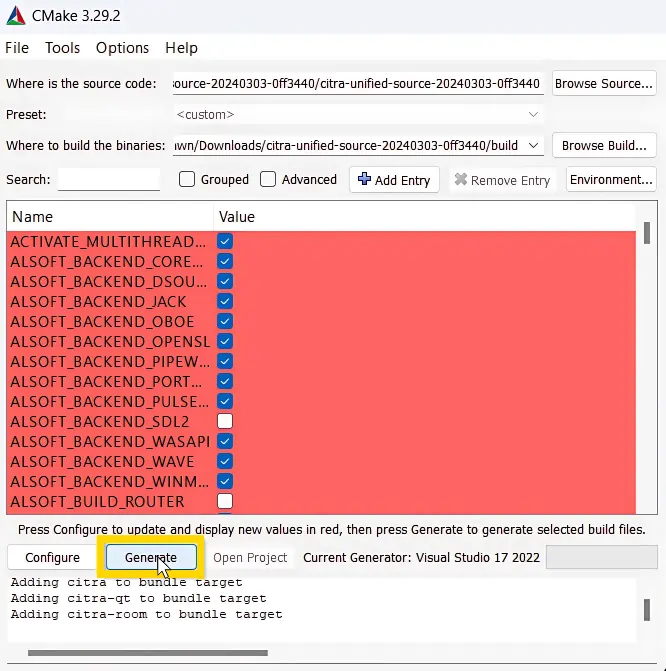
Step 5: Rebuild Citra in Visual Studio
Open the generated project: → Go to your build folder and open citra.sln
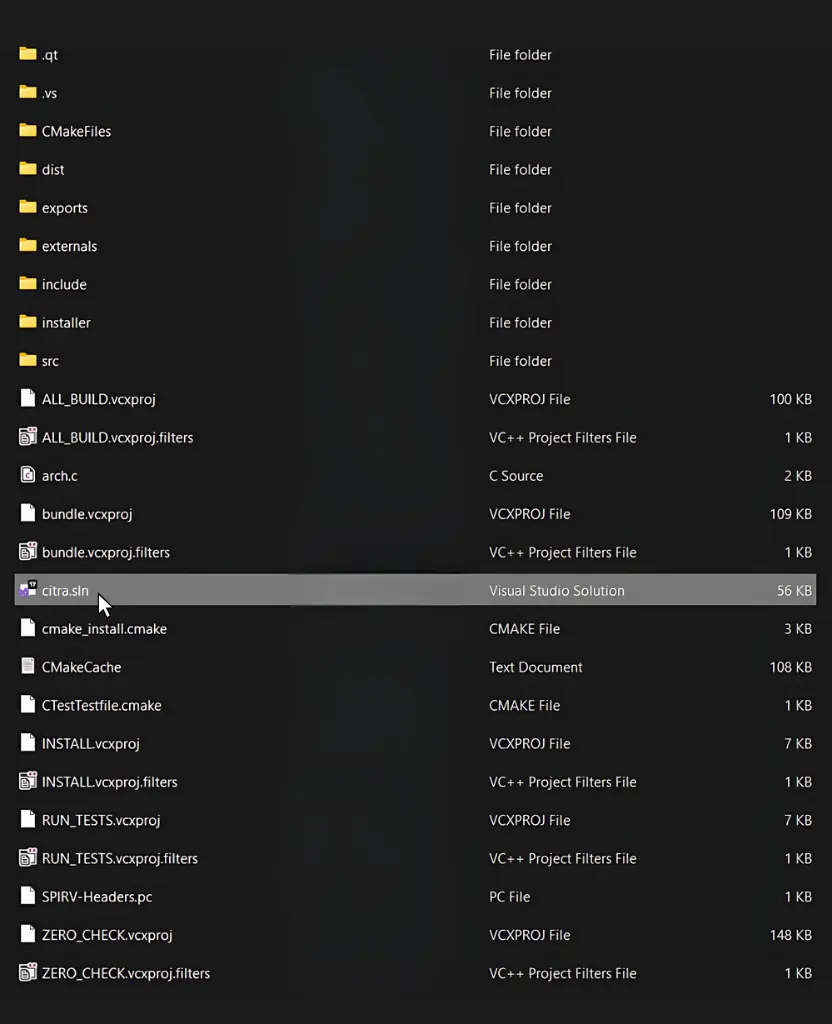
In Visual Studio, select: → Release (top toolbar)
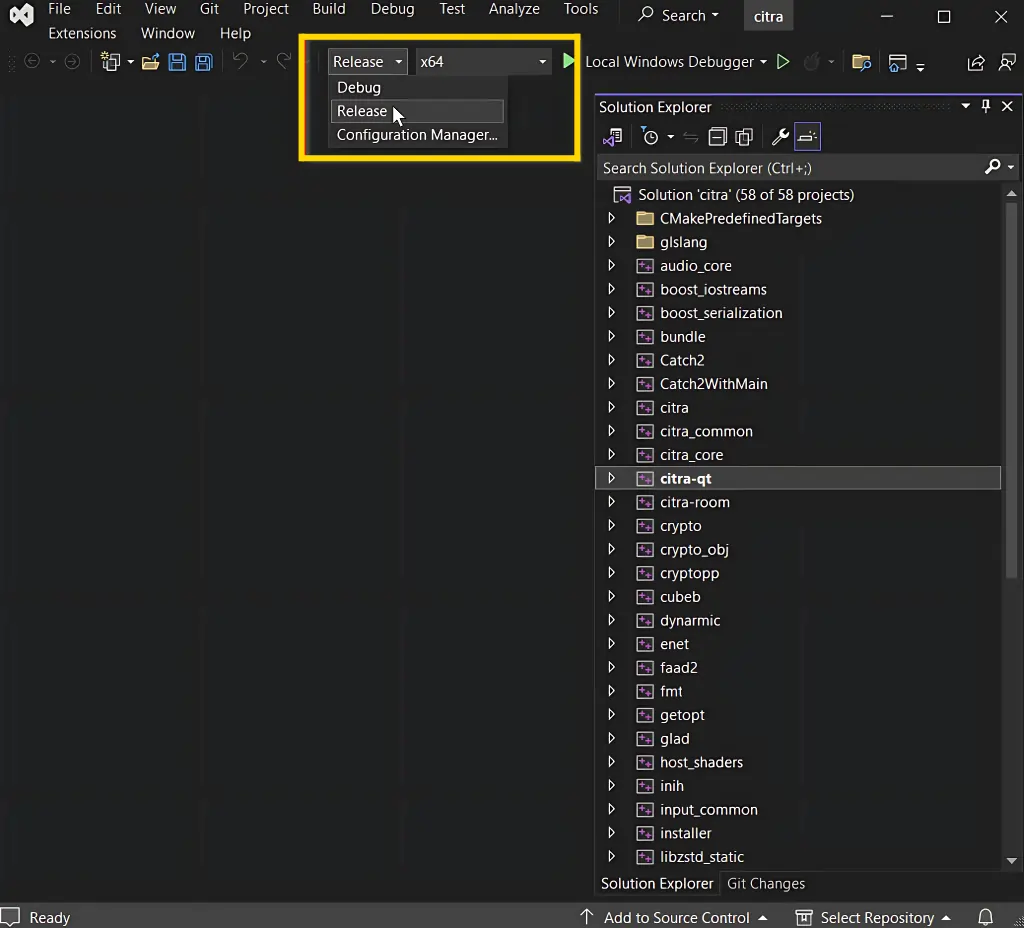
In Visual Studio, select:Click:→ Rebuild Solution → Release (top toolbar)
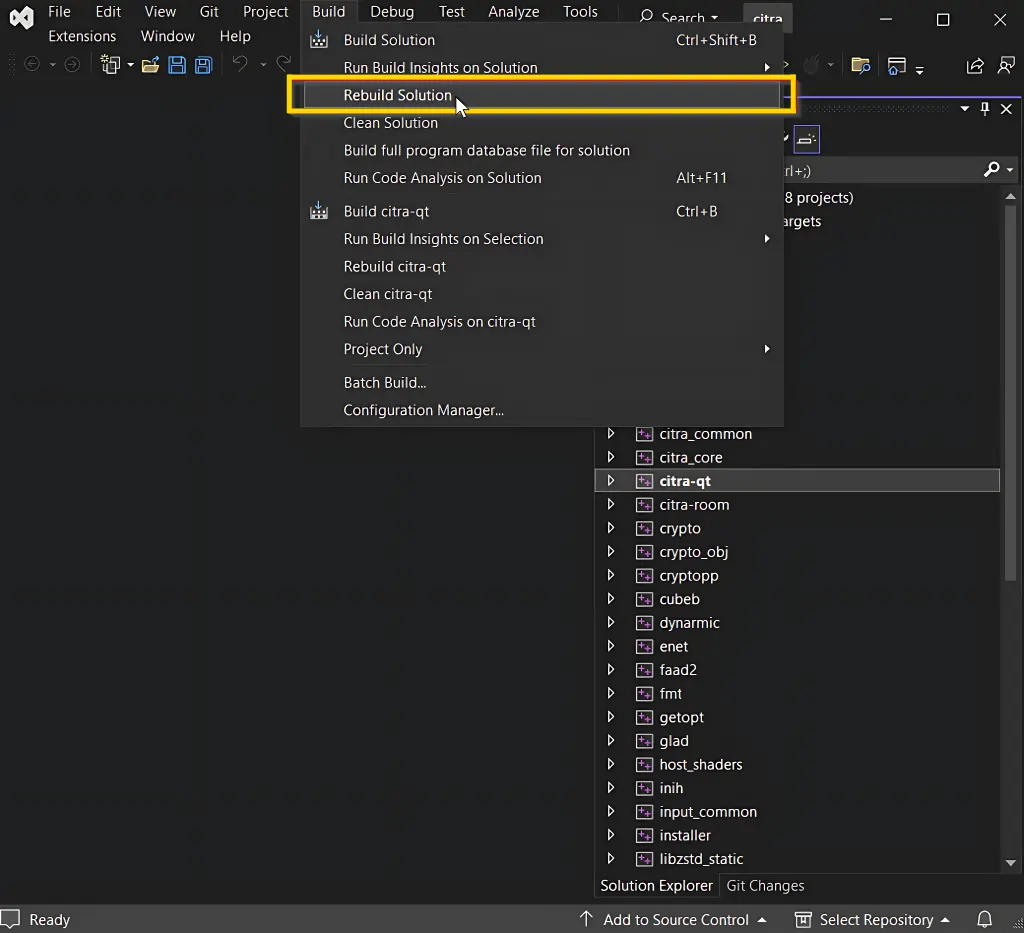
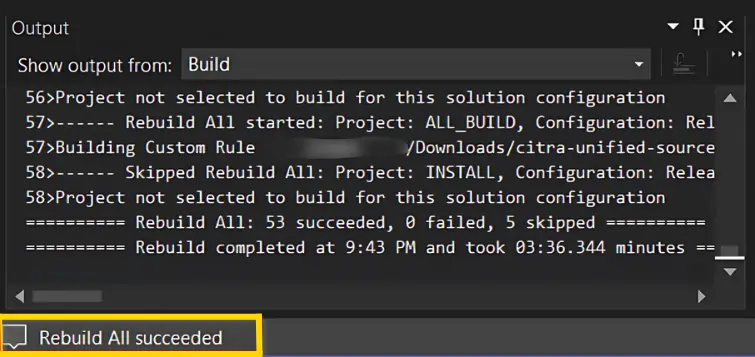
After a successful rebuild, the compiled Citra files will appear here: build folder > bin > Release > Run citra-qt.exe
Run citra-qt.exe from this folder to launch your newly compiled version of Citra.